Customizing Signal Rules
Learn how to customize Signal rules for Transfer
Before they can be initiated, transfers must be authorized by Plaid's Payment risk platform, Signal. Signal's risk engine is executed when /transfer/authorization/create is called to determine whether the transfer should proceed or be rerouted to a different payment method.
Signal uses Signal Rules, which enable you to define your decision logic. These rules are configured directly within the Signal Dashboard, utilizing Plaid-provided templates that you can customize for your specific needs.
It is important to note that these configurable Signal Rules apply exclusively to debit transfers and are not used for customers leveraging Transfer solely for payouts (credit transfers). Both debit and credit transfers are subject to an additional, mandatory set of risk and compliance checks that occur in /transfer/authorization/create.
You can manage your rules in the Signal Rules section of the Dashboard.
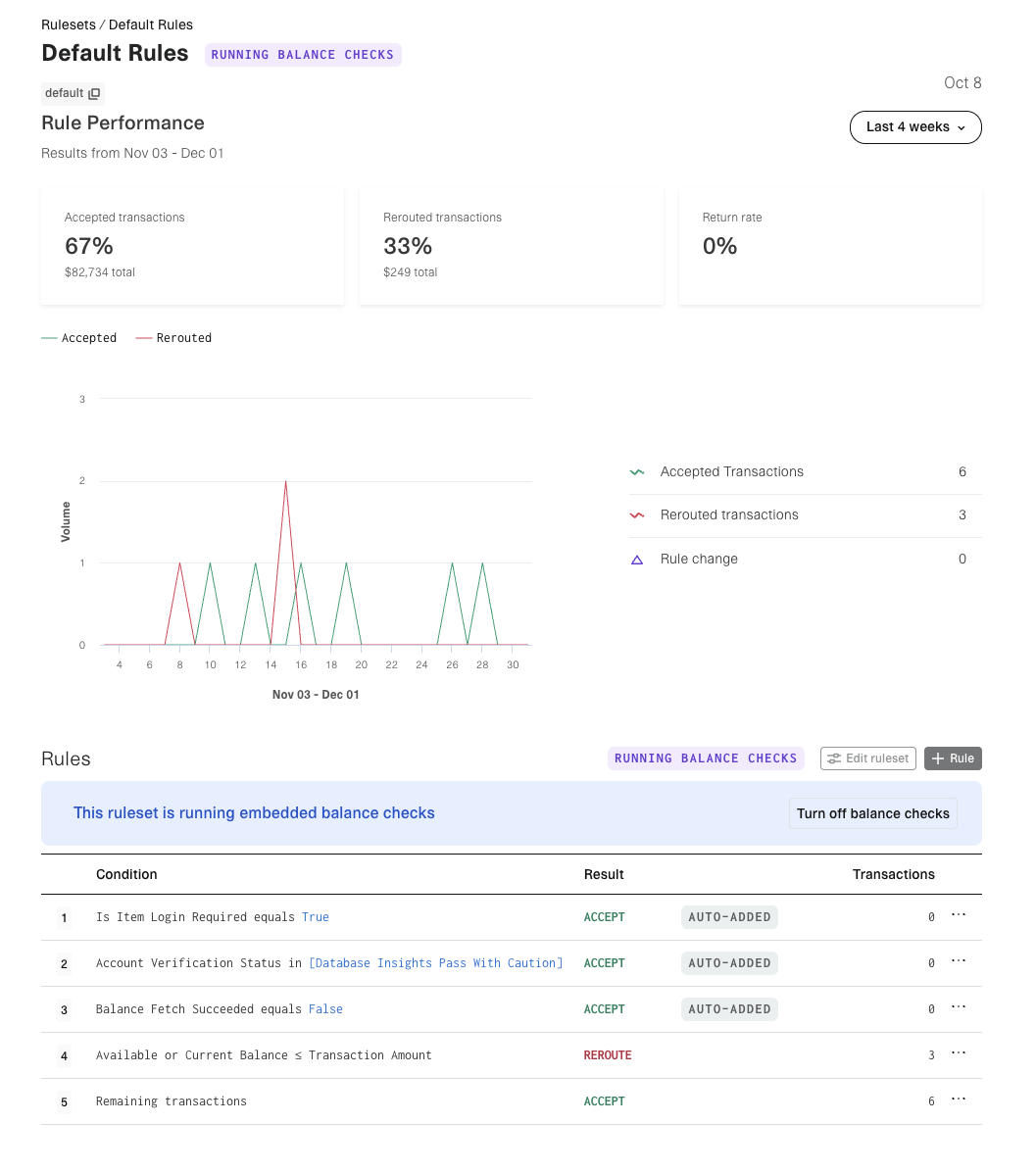
Each rule produces a result:
ACCEPTand proceed with the transaction. Thedecisionfrom/transfer/authorization/createwill beapproved.REROUTEthe customer to a different payment method. Thedecisionfrom/transfer/authorization/createwill bedeclined.
Rules are evaluated sequentially, from top to bottom, typically ordered by the severity of the rule violation. If data that the rule depends on is not available, the rule will be skipped. Every ruleset must include a fallback rule that always matches all remaining transactions.
You can customize many of these rules to meet your business's needs.
If you need to use the /signal/evaluate endpoint independently, outside of the /transfer/authorization/create flow, contact your Plaid Account Manager.
Default ruleset for real-time balance checks
Signal performs a real-time balance check of the end-user account when evaluating debit transfers. Plaid provisions a default ruleset for balance checks containing four rules that cover the most common balance‑related scenarios.
| Rule order | Condition | Result | Decision Rationale Code | Explanation | Configurability |
|---|---|---|---|---|---|
| 1 | Is Item Login Required equals TRUE | ACCEPT | ITEM_LOGIN_REQUIRED | Item connection is broken but can be restored using update mode. A transfer can still be processed without restoring the Item, but Plaid cannot retrieve balance information until the Item is restored. See Repairing Items in ITEM_LOGIN_REQUIRED state. | Result can be edited. |
| 2 | Account Verification Status in [Database Insights Pass With Caution] | ACCEPT | MANUALLY_VERIFIED_ITEM | Item was manually verified via Database Auth and result was "pass with caution". Balance can never be checked on this Item. | Result can be edited. |
| 3 | Balance Fetch Succeeded equals false | ACCEPT | ERROR | Plaid was unable to fetch the balance of the account for reasons not covered in the previous two rules. You can retry this authorization request later to re-attempt fetching the balance. | Result can be edited. |
| 4 | Available or Current Balance ≤ Transaction Amount | REROUTE | NSF | Account balance is likely to be insufficient for the transaction amount. | Result can be edited. Rule can be deleted. |
| 5 | (Fallback) Remaining transactions | ACCEPT | null | Transaction did not meet the condition for any other rule above. | Fallback rule. Cannot be edited or deleted. |
The default ruleset is designed to let you proceed with processing transfers by default. When Plaid is unable to fetch the account balance, the default ruleset produces an ACCEPT result.
You can edit the rule outcomes to be more conservative based on your risk tolerance and ongoing return rates. For example, in the case of high NSF returns, you may want to REROUTE transactions when balance fetches fail, when the Item connection is broken, or when the result of Database Auth is database_insights_pass_with_caution.
Creating additional custom rulesets
If you have your own set of rules you would like to use for balance checks, you can create a custom ruleset via the Plaid Dashboard. You can create multiple rulesets and have different rulesets applied in different situations.
For example, you could create a ruleset with stricter rules for first time users (such as not proceeding with the Transfer when the balance could not be fetched) and a separate ruleset with more lenient rules for returning users, allowing you to better balance your risk and user experience.
Note: You cannot override the Plaid's mandatory risk and compliance checks; these result in a RISK rationale code.
To create a ruleset:
- In the Plaid Dashboard, navigate to Signal → Rules
- Click Create and follow the guided process. You will be prompted to enter a unique name and key for your ruleset. This key is what you will use to reference the ruleset in your code.
- (Optional) For most new customers, we recommend starting with the default set of rules. However, if you prefer to customize your ruleset, create rules based on attributes such as Available or Current Balance or the Signal Transaction Score, and drag them into the specific order you want them to be evaluated.
- Click Save to activate your new ruleset.
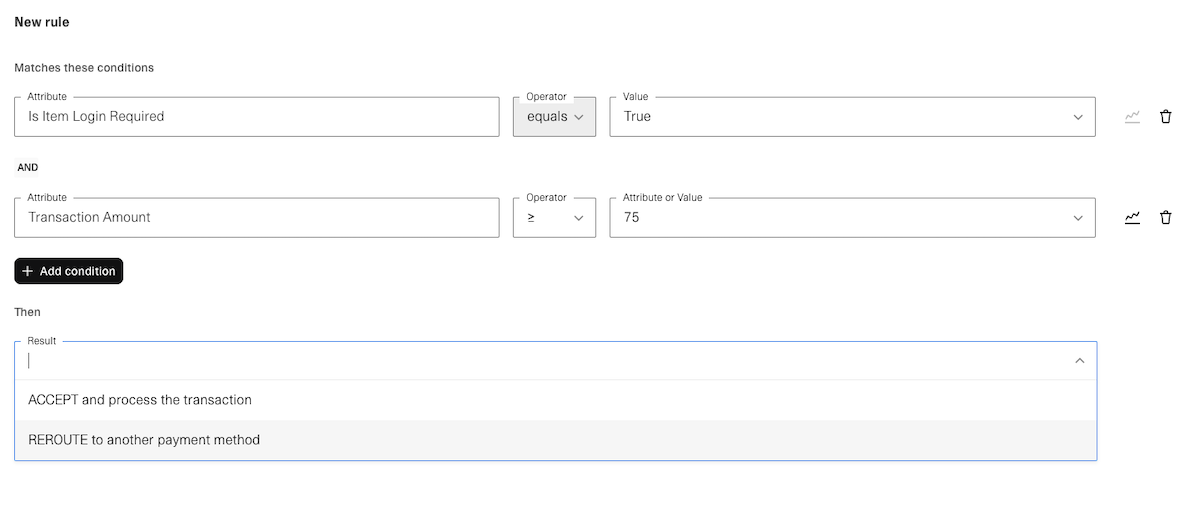
As you create and modify rulesets in the Plaid Dashboard, the Dashboard will display back‑tested performance for these new rulesets (counts of historical matching transactions and return‑rate estimates) so you can gauge the impact of these changes before going live. You can view the performance for any specific rule by clicking on the "..." icon next to the rule and selecting View Performance.
Disabling balance checks
You can also disable balance checks altogether for a ruleset. For example, you may not want to run balance checks for low-risk, highly trusted customers who are making small transactions.
To disable balance checks, go to the rule editor page for the ruleset and click the "Turn off balance checks" button.
When a ruleset has balance checks running, a "Running Balance Checks" banner will be displayed next to the ruleset name on both the Ruleset overview page and the Ruleset detail page. When a ruleset does not have balance checks running, the banner will read "Balance Checks Turned Off".
Using rulesets during transfer authorization
To evaluate a transfer against a custom ruleset, pass the ruleset_key in your /transfer/authorization/create call. If you do not pass in a ruleset_key, Signal will use the default ruleset.
Plaid will assess the transfer against the corresponding ruleset, and the authorization object in the API response will indicate if the authorization is approved or declined, along with a decision rationale code. Transfers that result in an ACCEPT value will have an approved authorization decision, and transfers that result in REROUTE will have a declined decision.
"authorization": {
  "id": "460cbe92-2dcc-8eae-5ad6-b37d0ec90fd9",
  "decision": "approved",
  "decision_rationale": {
    "code": "ITEM_LOGIN_REQUIRED",
    "description": "Unable to pull required information on account needed for authorization decision due to item staleness."
  }
...
}
When any of the rules within the ruleset are triggered, the decision_rationale.code in the response will indicate which rule condition was met. Note that when the decision rationale is null, this means that the transfer passed through to the fallback rule without triggering any of the other rules.
When any of the non-fallback rules in a ruleset are triggered, the decision_rationale.code in the /transfer/authorization/create response will indicate which rule condition was met. See the table above to map a decision_rationale.code to a default rule.
Default authorization decisions
All transactions
The following authorization decisions are applied to all applicable transfers sent to Plaid for authorization. This includes a mandatory set of risk and compliance checks that cannot be disabled or modified.
| Transfer Type | Scenario | Authorization Decision | Decision Rationale Code |
|---|---|---|---|
| Debit, Credit | Items successfully created through manual verification (micro-deposits or database authentication) are approved by default for processing because there is no active data connection to the Item. | approved* | "MANUALLY_VERIFIED_ITEM" |
| Debit, Credit | Items created through /transfer/migrate_account are always approved for processing because there is no active data connection to the Item. See Importing Account and Routing numbers. | approved | "MIGRATED_ACCOUNT_ITEM" |
| Debit, Credit | Transfer exceeds a limit, such as a monthly or daily transaction limit (see TRANSFER_LIMIT_REACHED). | declined | "TRANSFER_LIMIT_REACHED" |
| Debit, Credit | The Item's verification_status is database_insights_fail, pending_automatic_verification, pending_manual_verification, unsent, verification_expired, or verification_failed. | declined | "RISK" |
| Debit, Credit | The user's device activity indicates fraud | declined | "RISK" |
| Debit, Credit | The user's IP address is in an OFAC-sanctioned country | declined | "RISK" |
| Debit, Credit | There are excessively high rates of insufficient funds, administrative, and/or unauthorized returns associated with the account across the Plaid network. | declined | "RISK" |
| Credit | Insufficient available Ledger balance for a credit | declined | “NSF” |
Debit transactions
The following balance-based decisions are applicable for debits unless you are using Signal Transaction Score rules. If you use the default balance-based rules, you will see the following:
Many of these rules can be customized through the Rules section of the Transfer Dashboard.
| Transfer Type | Scenario | Authorization Decision | Decision Rationale Code |
|---|---|---|---|
| Debit | Item was manually verified through Database Auth and result was database_insights_pass_with_caution | approved* | "MANUALLY_VERIFIED_ITEM" |
| Debit | Account balance could not be verified due to an error fetching the balance | approved* | "ERROR" |
| Debit | Account balance could not be verified because a credentials-based Item was disconnected. | approved* | "ITEM_LOGIN_REQUIRED" |
| Debit | User account doesn't have sufficient balance to complete the debit transfer | declined | "NSF" |
| Debit | There are sufficient funds in the account balance for the transaction amount | approved | null |
Note: For debits, if an Item is in ITEM_LOGIN_REQUIRED state, the default ruleset outcome will be ACCEPT. If you wish to change this behavior, you must customize the ruleset.
Testing Signal Rules in Sandbox
The Signal Dashboard lets you switch between Sandbox and Production environments. You can create or edit Signal rulesets in Sandbox mode just as you would in Production. To test rulesets you have created in Sandbox, make sure to pass the appropriate ruleset_key to your /transfer/authorization/create call while using the Sandbox environment.
To simulate the account having insufficient balance, you can either use custom Sandbox users to create a user with a specific balance, or simply attempt a transfer for a higher amount than the available balance in that account. You can verify the available balance by making a call to
/accounts/balance/get.To simulate the Item going into an
ITEM_LOGIN_REQUIREDstate, call/sandbox/item/reset_login, passing in that account's access token.To simulate an Item that was verified through Database Auth, follow the instructions for Testing Database Auth in Sandbox.
For Reseller Partners
A reseller partner will have a global Signal ruleset that all their end customers inherit. If the reseller makes a change to that global default ruleset, all the end-customers also automatically adopt that change as well. End customers can also create their own rulesets, which will not propagate back to the reseller partner.